Ad disclosure: Affiliate links (*). As an Amazon Associate, eBay Partner Network affiliate and member of other partner programs, I earn from qualifying purchases.
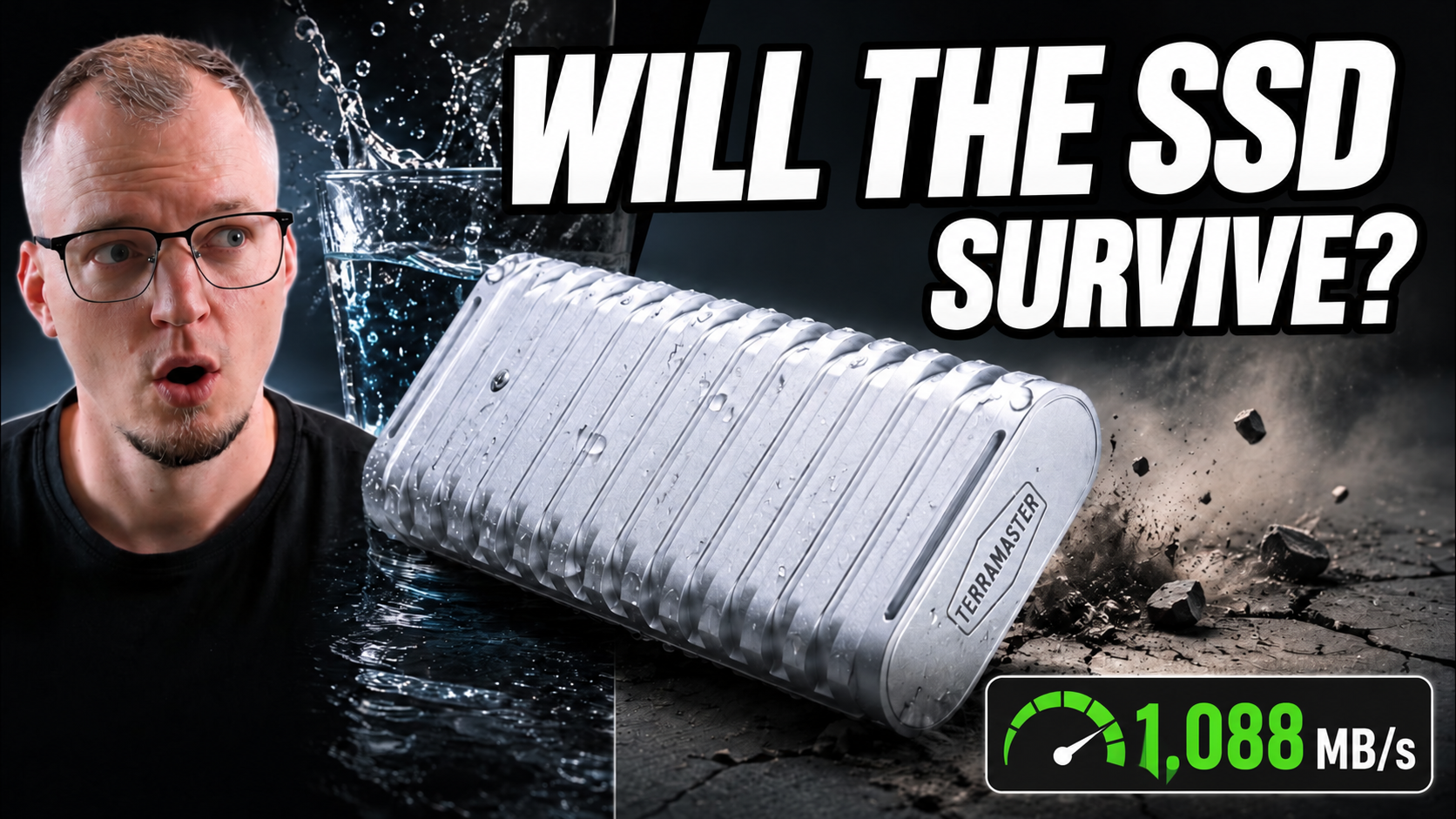
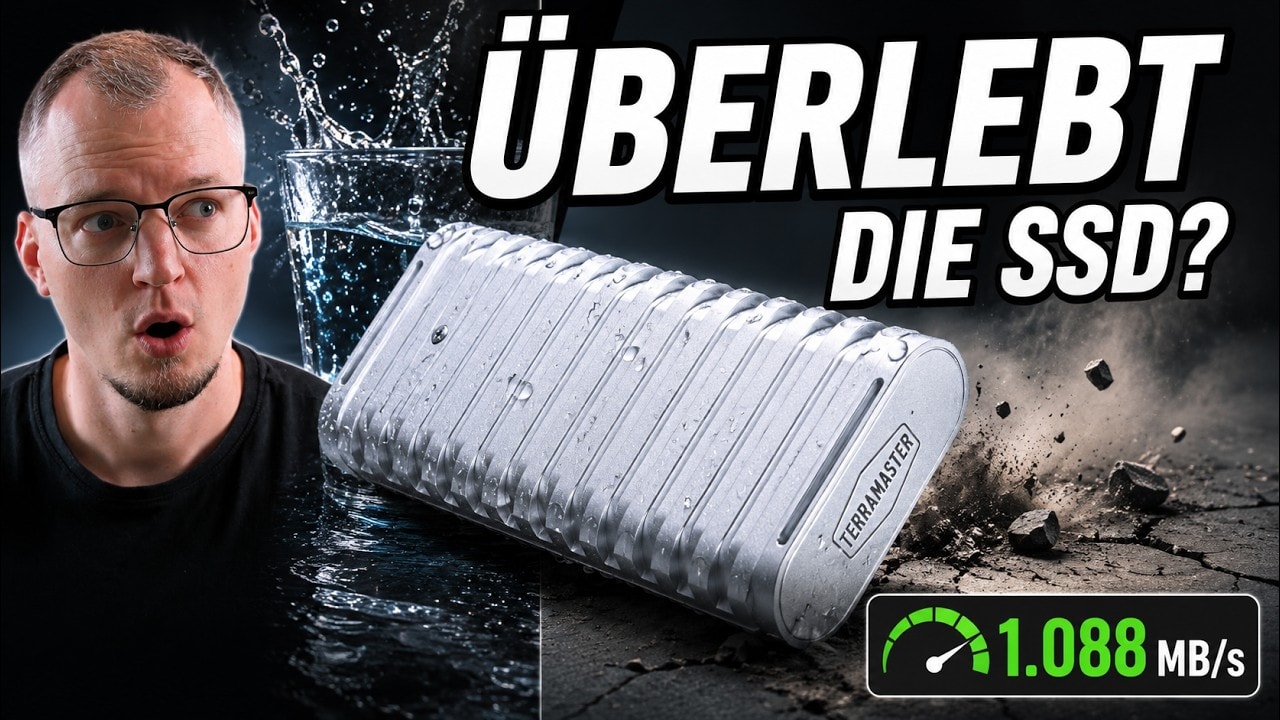
Aluminium enclosure for M.2 NVMe SSDs in the 2280 format with USB 3.2 at 10 Gbit/s, powered via USB-C. Tested with a 2 TB WD_BLACK SN7100: up to 1,088 MB/s read, around 730 MB/s when copying 50 GB of videos, and it survived a water test and two drops without data loss.
My test video 🎥
Here you can watch my full test of the TerraMaster D1 (in German; YouTube offers automatically generated English subtitles via the CC button).
Specs
Manufacturer: TerraMaster
Model: D1 SSD
Type: Enclosure for M.2 NVMe SSD (2280)
Interface: USB 3.2, up to 10 Gbit/s, USB-C
Power: via the USB-C cable
Material: Aluminium, ribbed
SSD used in the test: WD_BLACK SN7100, 2 TB
CrystalDiskMark (1 GiB, 3 runs): seq. read up to 1,088 MB/s, seq. write up to 1,080 MB/s
Copying 50 GB of video files: approx. 730 MB/s write, approx. 1,000 MB/s read
Stress tests: Glass of water, two drops from desk and pocket height
Faster versions: D1 Plus (40 Gbit/s), D1 Pro (80 Gbit/s)
Test unit: provided by the manufacturer
Pros
Makes full use of USB 3.2 at 10 Gbit/s: over 1,000 MB/s sequential
Survived a water test and two drops without data loss
Solid aluminium enclosure with good heat dissipation
SSD installed in a few minutes
Powered via the USB-C cable, no power adapter
Cons
Limited to 10 Gbit/s, no faster on 40 Gbit/s ports
Slightly larger and heavier than plastic enclosures
SSD has to be bought separately
An external SSD should not only be fast. With backups, large video projects and important data, it matters just as much that the enclosure can take a beating on the go. So I tested the TerraMaster D1 with a 2 TB WD_BLACK SN7100: with around 50 GB of video files, CrystalDiskMark, a water test and two drops.
The result up front: the TerraMaster D1 achieves the speed you can expect from USB 3.2 at 10 Gbit/s very well and survived the stress tests in my setup without any data loss.
Key takeaways
The TerraMaster D1 takes M.2 NVMe SSDs in the 2280 format and is powered via USB-C.
In the practical test, writing reached around 730 MB/s and reading about 1,000 MB/s.
CrystalDiskMark showed up to 1,088 MB/s sequential read and 1,080 MB/s write.
After the water and drop tests, the SSD, data and video files were still recognised without any problem.
What is the TerraMaster D1?
The TerraMaster D1 is not a ready-made external SSD. It is an enclosure into which you insert your own M.2 NVMe SSD. That is particularly practical if you already have an SSD or want to choose storage capacity and speed yourself.
M.2 NVMe SSDs in the common 2280 format are supported. For this test I used a WD_BLACK SN7100 with 2 TB.
The enclosure is mostly made of aluminium and immediately makes a robust, solid impression. That makes it somewhat larger and heavier than many small plastic enclosures. But the aluminium is not just for looks: it helps dissipate the heat of a fast NVMe SSD during longer file transfers.
TerraMaster also advertises the D1 as water-, dust- and shock-resistant. Whether that holds up in practice, I clarify further down with the water and drop tests.
What is in the box and connection
Besides the SSD enclosure, the necessary accessories are included, among them a USB-C cable. This cable powers the D1 and connects it to the computer at the same time. A separate power adapter is not required.
The interface works with USB 3.2 at up to 10 Gbit/s. In practice that corresponds to a maximum usable data rate of roughly 1,000 MB/s, because part of the bandwidth is needed by the transfer protocol.
The enclosure can also be used on a faster USB-C port. In the test I used a port with up to 40 Gbit/s. The D1 does not get any faster that way, though, because the enclosure itself is limited to 10 Gbit/s. If you need much higher transfer rates, you need an enclosure with USB4 or Thunderbolt.
Installing the M.2 NVMe SSD
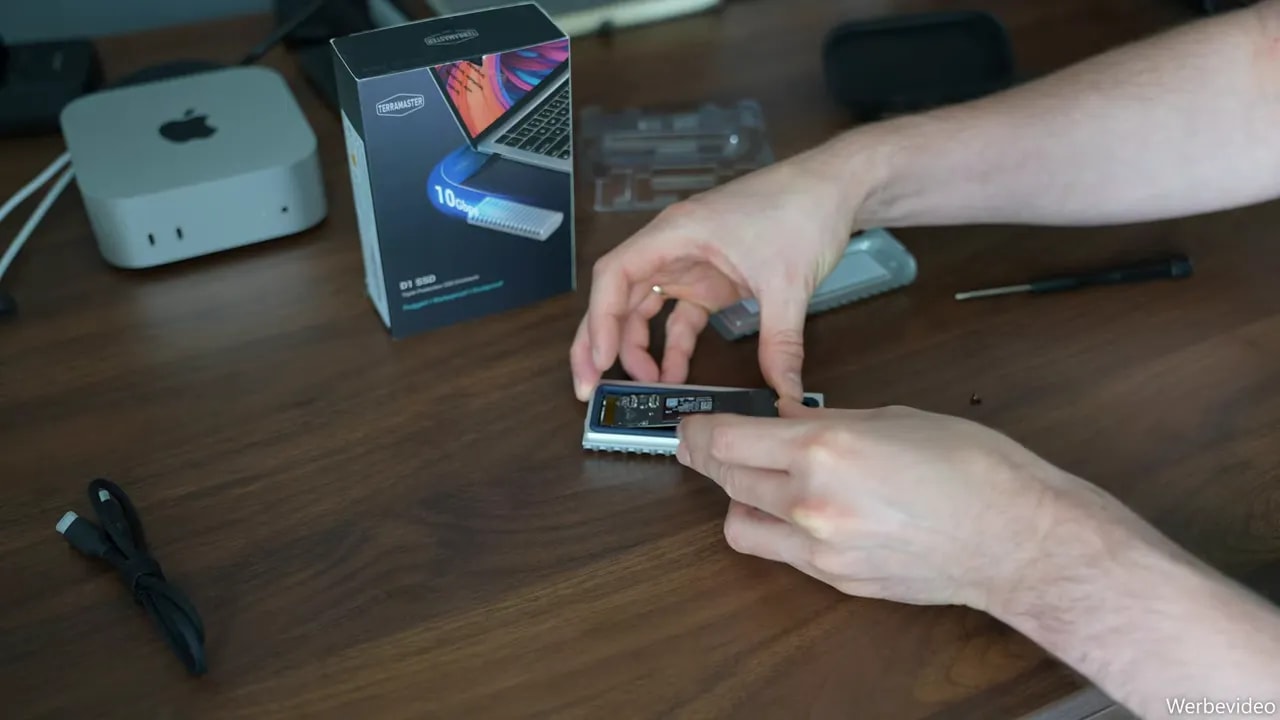
Installation is uncomplicated and done in a few minutes. The only thing that matters is to work cleanly and not to force the SSD in.
Open the TerraMaster D1.
Slide the M.2 NVMe SSD into the M.2 slot at a slight angle.
Check that the contacts sit fully in the slot.
Press the SSD down carefully and secure it with the provided retainer.
Close the enclosure completely again.
The ribbed aluminium enclosure stands out right away. The large surface supports heat dissipation, which makes sense with fast NVMe SSDs and longer copy operations.
Setting up and formatting the SSD under Windows
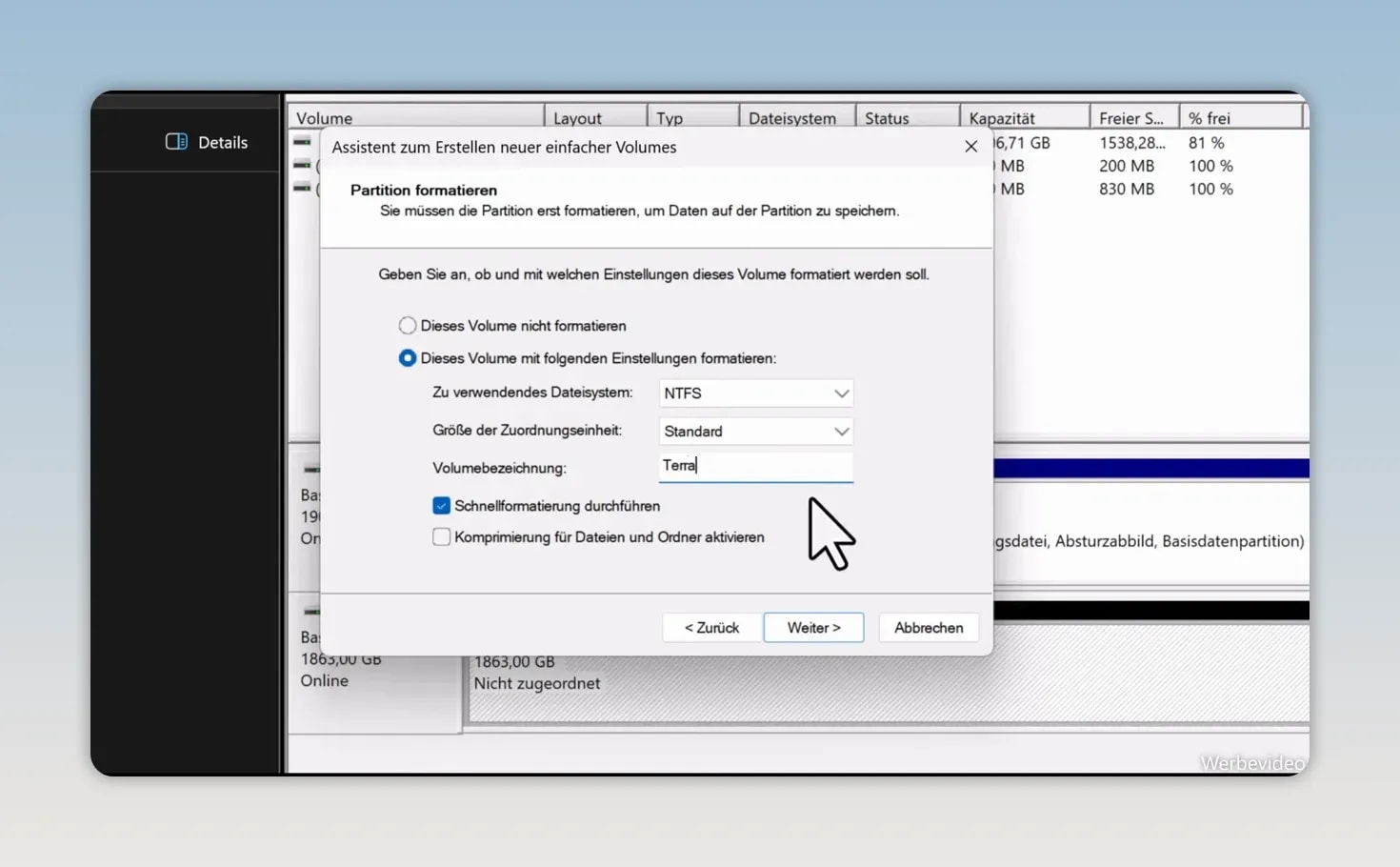
After installation and connection, a new SSD first has to be initialised and formatted under Windows. Only then does it appear as a usable drive in Explorer.
Press Windows + X and open Disk Management.
Look for the new, uninitialised or unallocated disk.
Before every step, be sure to check the displayed storage capacity so that you do not accidentally edit the wrong drive.
Right-click the new disk to start the initialisation.
Select GPT as the partition style.
Right-click the unallocated space and choose New Simple Volume.
Set the size, assign a drive letter and format.
For use under Windows I chose NTFS as the file system in the test. After formatting, the drive was immediately visible in Explorer. A clear drive label additionally helps you tell the external SSD apart from other drives quickly later on.
Practical test: copying 50 GB of video files
A benchmark is helpful, but copying large files shows particularly well how an SSD enclosure behaves in everyday use. So I first transferred around 50 GB of video files from the computer’s internal SSD to the TerraMaster D1 and then copied them back.
Writing to the TerraMaster D1: on average around 730 MB/s
Reading from the TerraMaster D1: about 1,000 MB/s
The transfer stayed stable in both directions. There were no connection drops or error messages. Afterwards, all video files opened without any problem.
That writing was slower than reading here is not unusual. The speed actually achieved depends not only on the enclosure but on several factors:
the NVMe SSD used
the USB port on the computer
the cable
the source and target drive
the size and number of files transferred
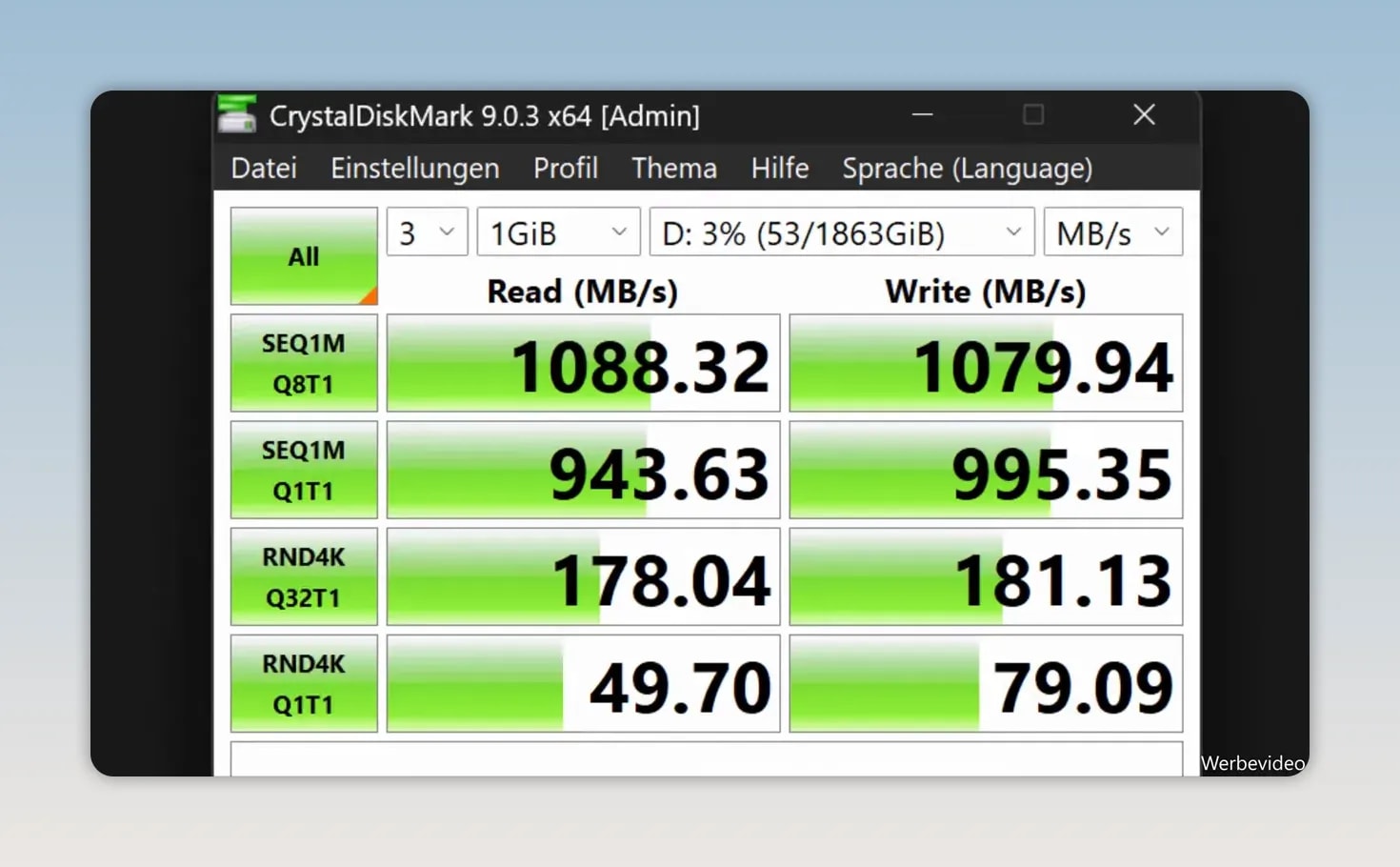
CrystalDiskMark: up to 1,088 MB/s when reading
In addition to the file copy test, I used CrystalDiskMark with three runs and a test size of 1 GiB. In the sequential accesses, which are particularly relevant for large videos, photos and backups, the TerraMaster D1 was at a good level for a 10 Gbit/s enclosure.
Sequential read: up to 1,088 MB/s
Sequential write: up to 1,080 MB/s
Second sequential test: around 944 MB/s reading and 995 MB/s writing
Random access to small data blocks: about 50 to 181 MB/s, depending on the test
The lower values for small random accesses are to be expected. For typical use as a mobile work, backup or video project SSD, the sequential values are what count. And exactly there the D1 delivers more than 1,000 MB/s and makes full use of its interface.
Water test: data still there after submersion
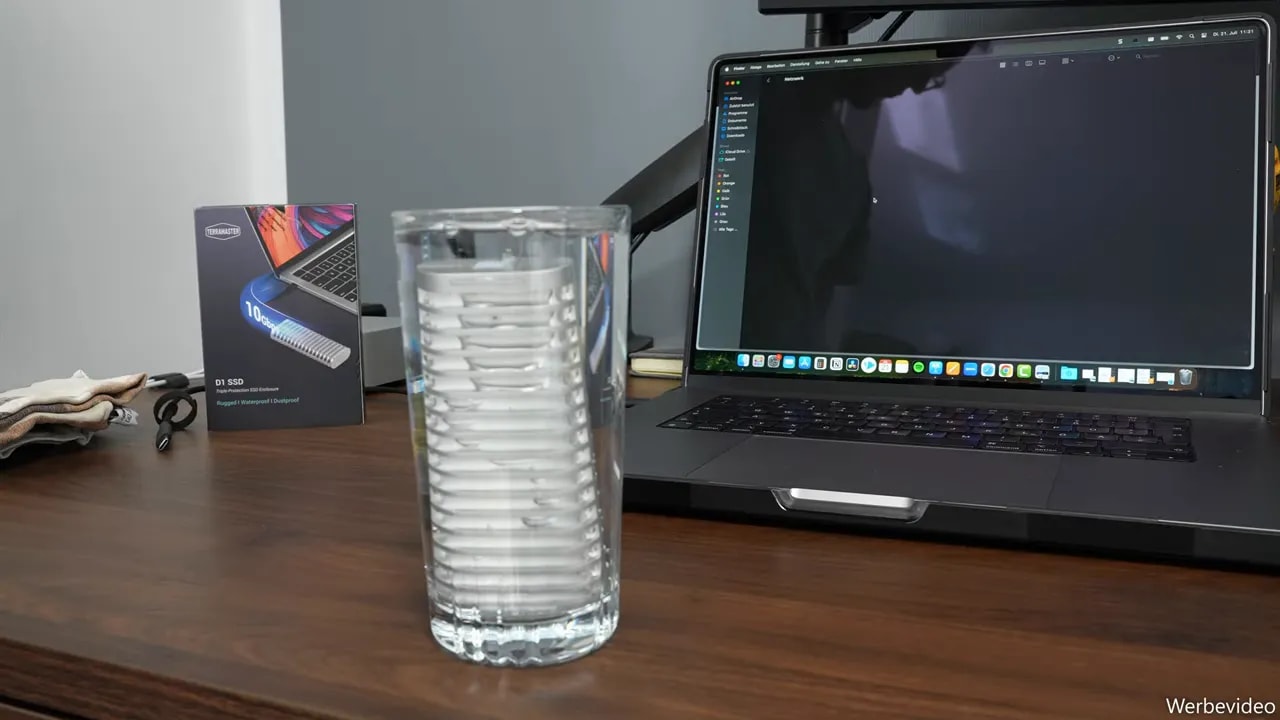
For the water test, the fully closed TerraMaster D1, not connected to the computer, was placed in a glass filled with water. Then the enclosure was taken out and dried thoroughly.
The USB-C port is particularly important. It must be completely dry before the enclosure is connected to a computer again.
After checking and reconnecting, the SSD was recognised immediately. The video files transferred earlier were still there and opened without problems. The TerraMaster D1 thus passed the water test in my setup.
Drop test from desk and pocket height
Next, the aluminium enclosure had to prove itself in two drops. The first fall was from roughly desk height, the second from about trouser pocket height.
After the two drops, only a small nick was visible on the enclosure. Apart from that there was no visible damage. The enclosure stayed fully closed and the USB-C port also looked unchanged.
The decisive part, however, was the subsequent function test: the SSD was recognised again immediately. All stored data was still there, and the video files could be opened and copied again.
Verdict: rugged SSD enclosure with strong 10 Gbit/s performance
The TerraMaster D1 convinced me in the test. The solid aluminium enclosure feels high-quality, installing the SSD is quick, and the performance fits a USB 3.2 connection at 10 Gbit/s very well.
The enclosure is particularly interesting for anyone who regularly transports important data, backups or larger video and photo projects. In the test it survived both the water exposure and the two drops without the SSD or the stored files causing any problems afterwards.
If you need even more speed, go straight for a faster version with 40 or 80 Gbit/s. For a fast, rugged and portable external NVMe SSD, however, the TerraMaster D1 is a convincing solution.
Frequently asked questions about the TerraMaster D1
Which SSDs fit in the TerraMaster D1?
The enclosure takes M.2 NVMe SSDs in the 2280 format. In the test I used a WD_BLACK SN7100 with 2 TB.
How fast is the TerraMaster D1?
The interface works with USB 3.2 at 10 Gbit/s. CrystalDiskMark showed up to 1,088 MB/s sequential read and 1,080 MB/s write. Copying 50 GB of video files reached around 730 MB/s writing and about 1,000 MB/s reading.
Did the TerraMaster D1 survive the water test?
Yes. After submerging the closed enclosure in a glass of water and drying it thoroughly, the SSD was recognised immediately and all video files were still there.
What happened in the drop test?
After two drops from desk and pocket height, only a small nick remained on the aluminium enclosure. SSD and data worked without any problem afterwards.
Does the TerraMaster D1 need a power adapter?
No. The enclosure is powered and connected to the computer via the included USB-C cable at the same time.
Where to buy
TerraMaster D1
Test unit provided by the manufacturer. This had no influence on the test procedure or my verdict.
To provide you with an optimal experience, we use technologies such as cookies to store and/or access device information. If you consent to these technologies, we may process data such as browsing behavior or unique IDs on this website. If you do not give or withdraw your consent, certain features and functions may be impaired.
Functional
Always active
The technical storage or access is strictly necessary for the legitimate purpose of enabling the use of a specific service expressly requested by the subscriber or user, or for the sole purpose of carrying out the transmission of a communication over an electronic communications network.
Preferences
The technical storage or access is necessary for the legitimate purpose of storing preferences that have not been requested by the subscriber or user.
Anonymized statistics
Technical storage or access for statistical purposes only.Technical storage or access used solely for anonymous statistical purposes. Without a subpoena, the voluntary consent of your Internet service provider or additional records from third parties, the information stored or accessed for this purpose alone cannot generally be used to identify you.
Show YouTube videos
If you do not agree to this cookie, you will not be able to watch videos on the website.